Calendar

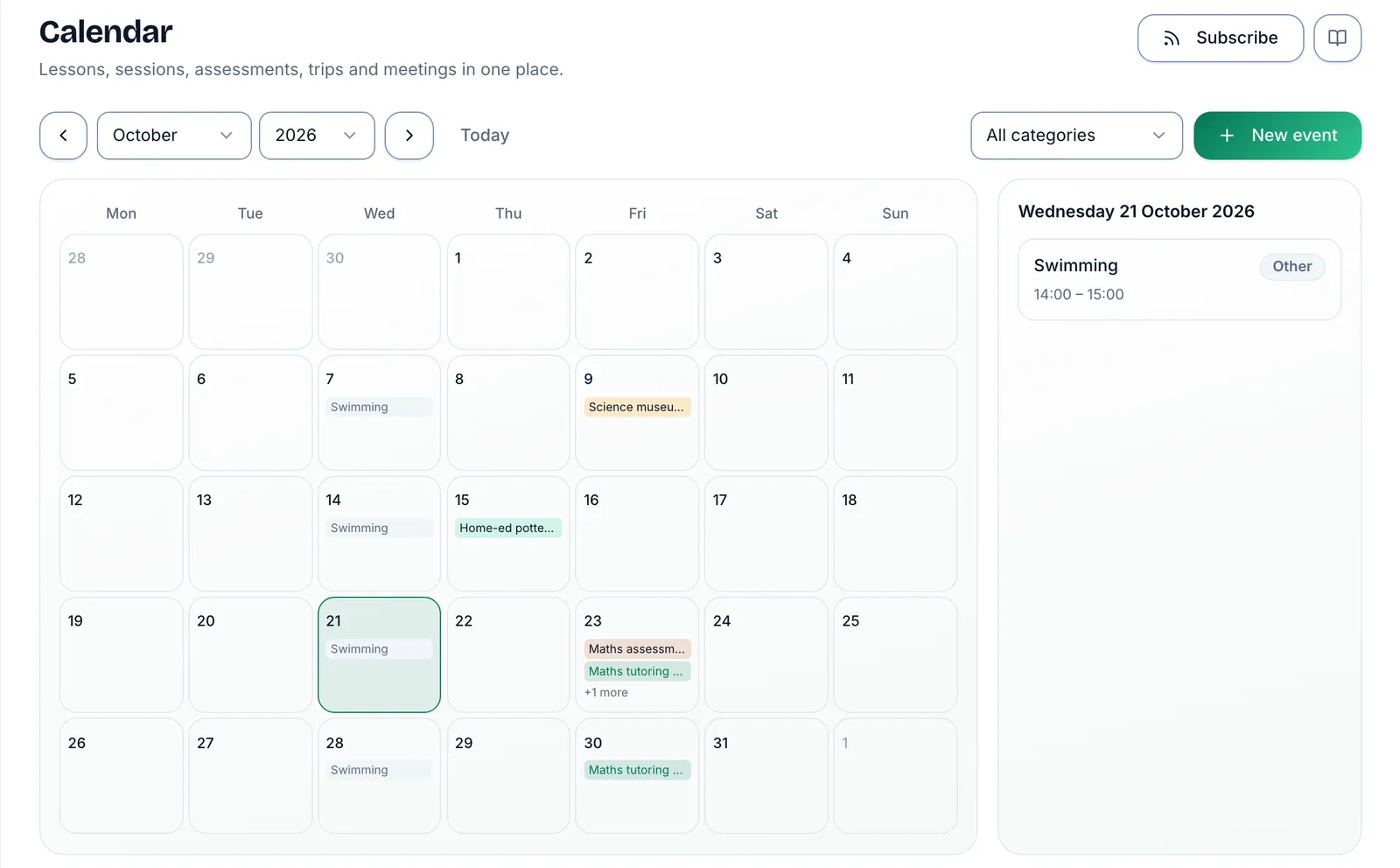
The shared family calendar: events with attendees, repeating schedules, and one view of the week that families and providers both see.


What it does

The AltEd calendar is the shared spine of the week. Lessons, tutoring sessions, group activities and one-off events all live on it, each with its own attendees — so every person (and every student) sees the events that involve them, and nobody is left reconstructing the week from a group chat.

Events can recur — weekly maths, fortnightly forest school, a monthly co-op meet — so you set the pattern once and the calendar keeps itself filled in. Tutoring sessions booked with providers appear alongside your own events, which is what makes the calendar genuinely shared rather than just personal.

Where to find it

  • Calendar: /dashboard/calendar
  • Sessions with providers also appear in Sessions (/dashboard/sessions).

Step by step

Add an event

  1. Go to Calendar (/dashboard/calendar).
  2. Create a new event and give it a title, a date and a time.
  3. Add the attendees — the students (and adults) the event involves. Attendees see the event on their shared view.
  4. Save. The event appears on the calendar for everyone involved.

Make an event repeat

  1. When creating (or editing) an event, set its recurrence — for example every week, every fortnight, or monthly.
  2. Save once; the calendar shows the whole repeating series going forward.
  3. Plans change — edit or remove the series when the pattern itself changes, rather than juggling individual weeks.

See the week at a glance

  1. Use the calendar views to move between days, weeks and months.
  2. Lessons you planned, events you created and sessions providers have scheduled all appear together — one honest picture of the week.
  3. Click any entry to see its details and attendees.

Keep sessions and the calendar in step

  1. When a provider schedules a tutoring session with one of your students, it shows on the calendar automatically — there is nothing to copy across.
  2. What happens to a session afterwards (confirmation by both sides, or an absence request) is handled in Sessions — see Payments & credits for how completed sessions turn into charges.

Tips

  • Put everything on the calendar, not just the formal lessons — the record of a home education is richer than a timetable, and the calendar is the easiest place to capture it.
  • Recurrence is the biggest time-saver in AltEd: if it happens most weeks, make it repeat.
  • Times follow the UK (Europe/London), including daylight-saving changes — an event at 10:00 stays at 10:00.

Subscribe from your own calendar

You can have AltEd's events appear in the calendar app you already use, so the week is in one place.

  1. On Calendar, choose Subscribe.
  2. Copy the link shown.
  3. Add it to your calendar app:
  • Google Calendar — Other calendars → From URL
  • Apple Calendar — File → New Calendar Subscription
  • Outlook — Add calendar → Subscribe from web
  1. Your calendar app refreshes on its own schedule, usually every few hours.

Treat the link like a password. Anyone who has it can see that calendar without signing in. If you share it too widely, choose Create a new link — the old one stops working immediately, and you re-add the new one wherever you use it.

Ready to follow along in the app?

No password, no card — a magic link and you're in.

Get started free